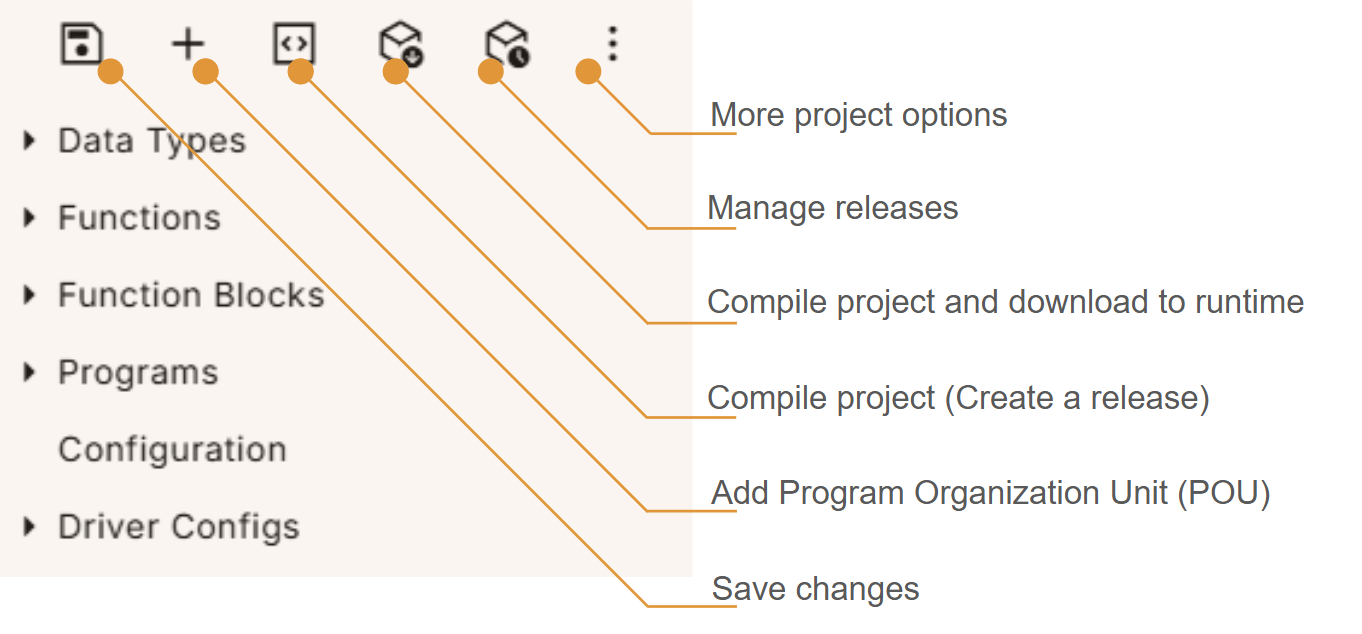
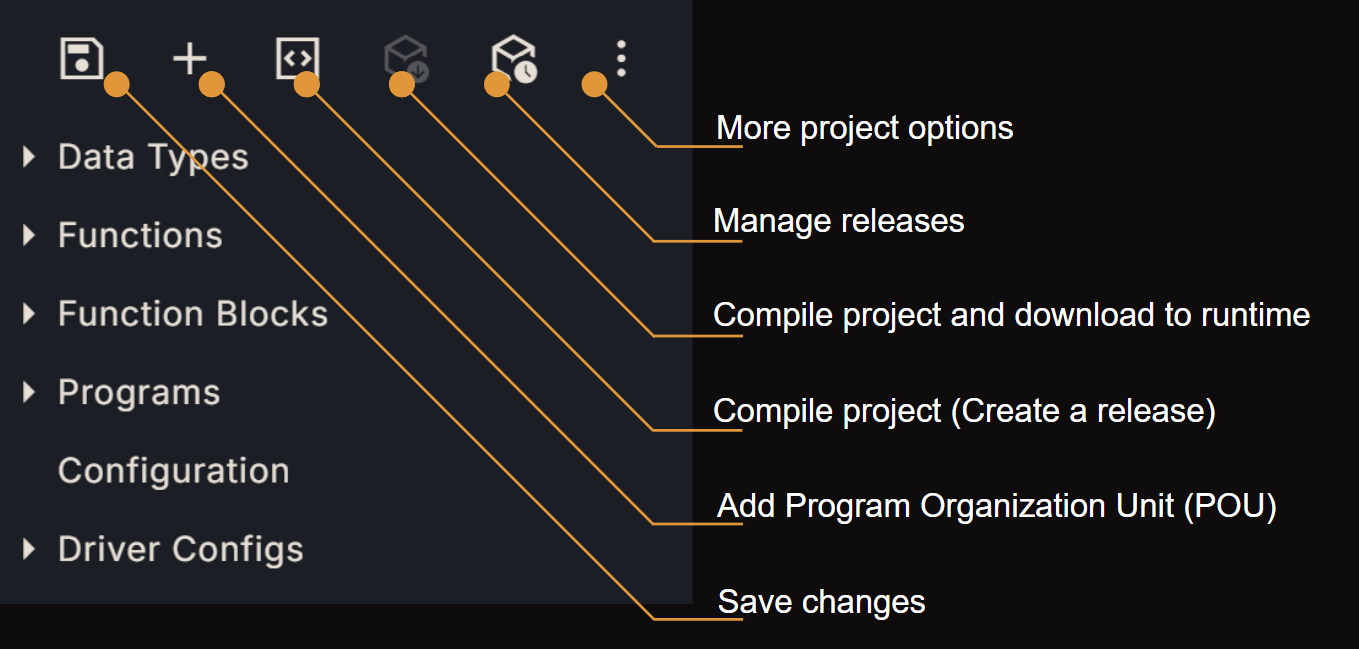
Project Browser

The Project Browser on the left-hand side lets you create and access your various program organization units (POUs) in your project. POUs are categorized for easy access. Hit the little arrow next to a category to expand or collapse its content. Project Browser Light Selecting a POU in the navigation pane will load its content into a new tab of the code window for editing.
Code Editor

The Code Editor provides basic code formatting and styling tools to support your Structured Text programs. Use the navigation pane to control which file or POU to show in this window. Code Editor Light You’ll find an increasing number of auto-complete suggestions to assist you in efficient and high-quality coding. The static code analyzer will flag lines of code that aren’t compliant with IEC 61131 and are likely to cause compilation to fail. Hover with the cursor over the highlighted text to get a description of the type of error detected by the static analyzer.
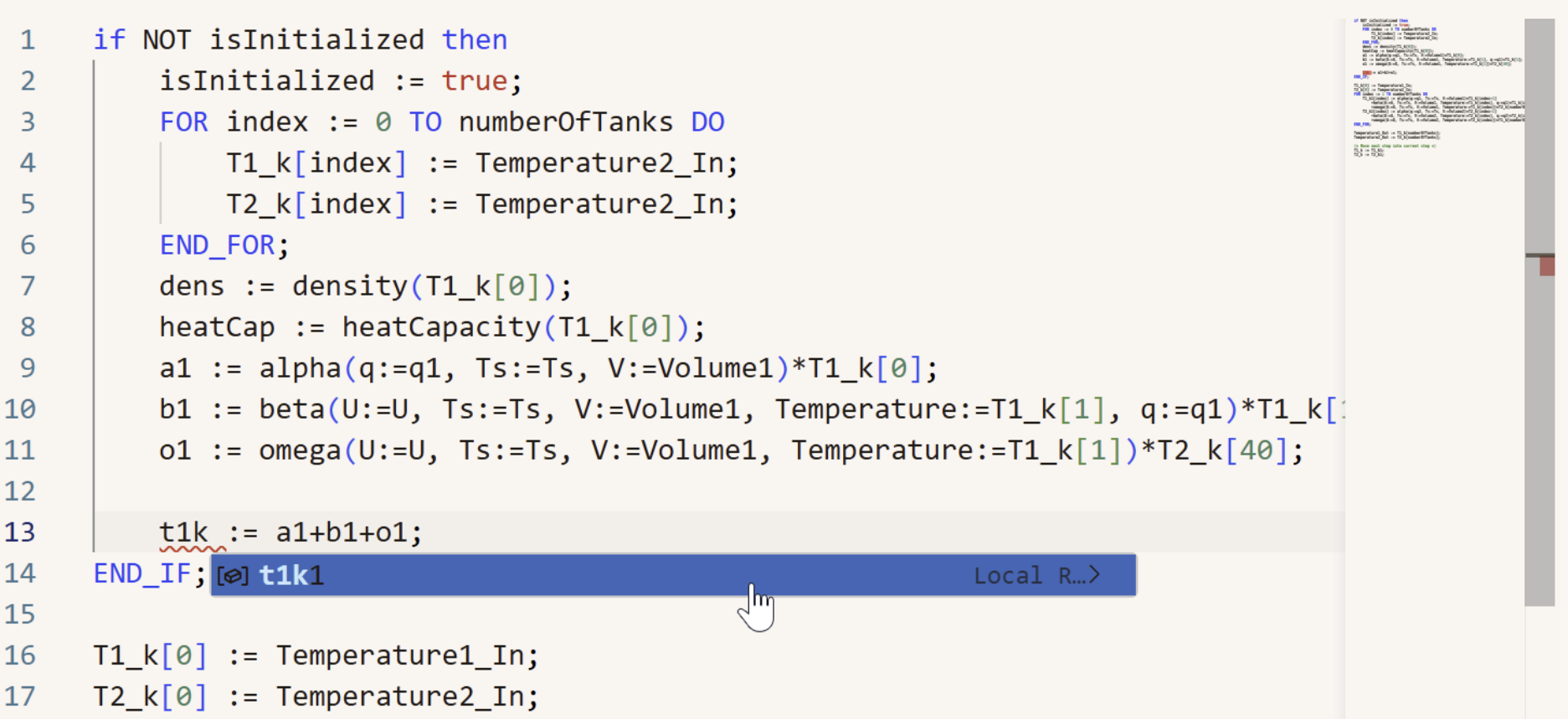
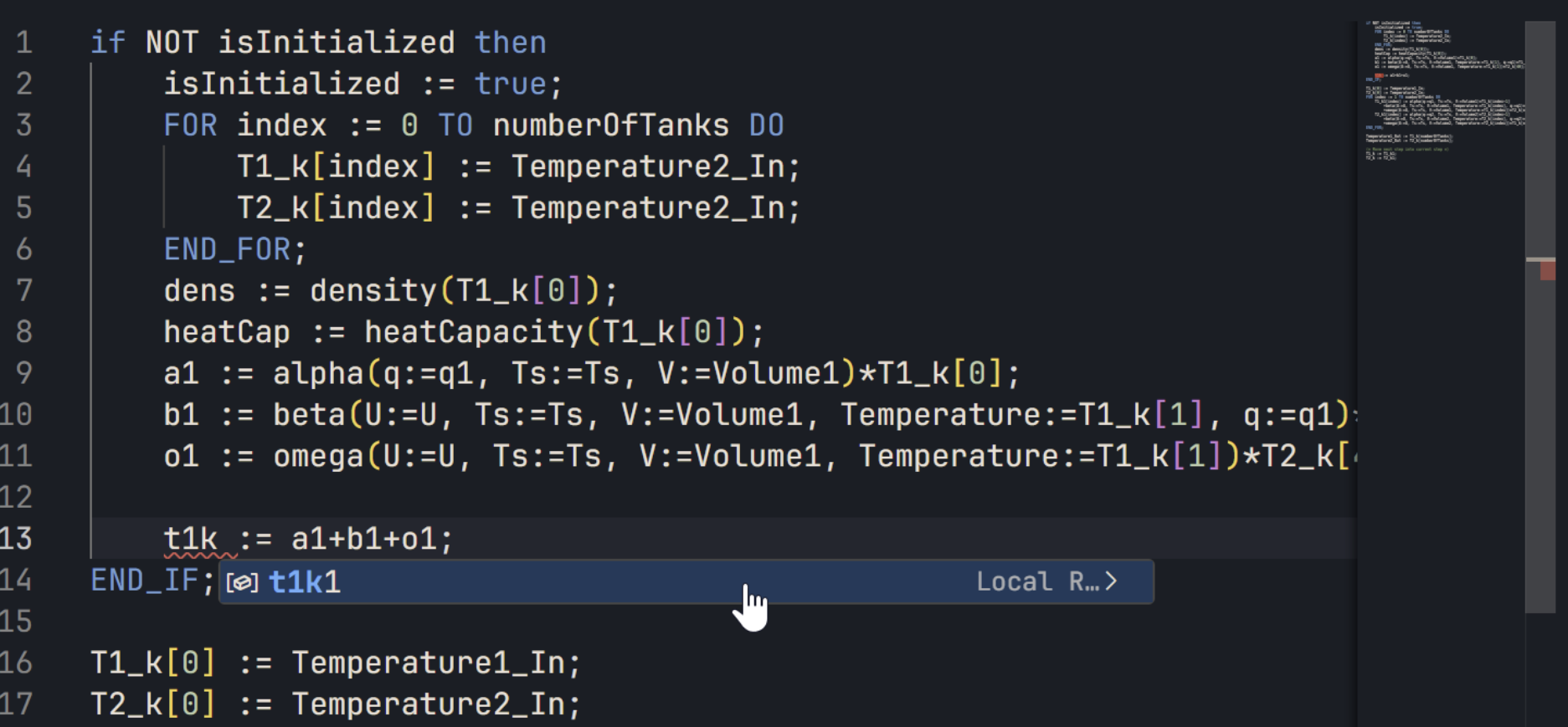
Note that comments in the code must be started with “(” and ended with “)”. Using “//” will not be flagged as incorrect in the static code analyzer but result in compilation errors.

Tag Editor

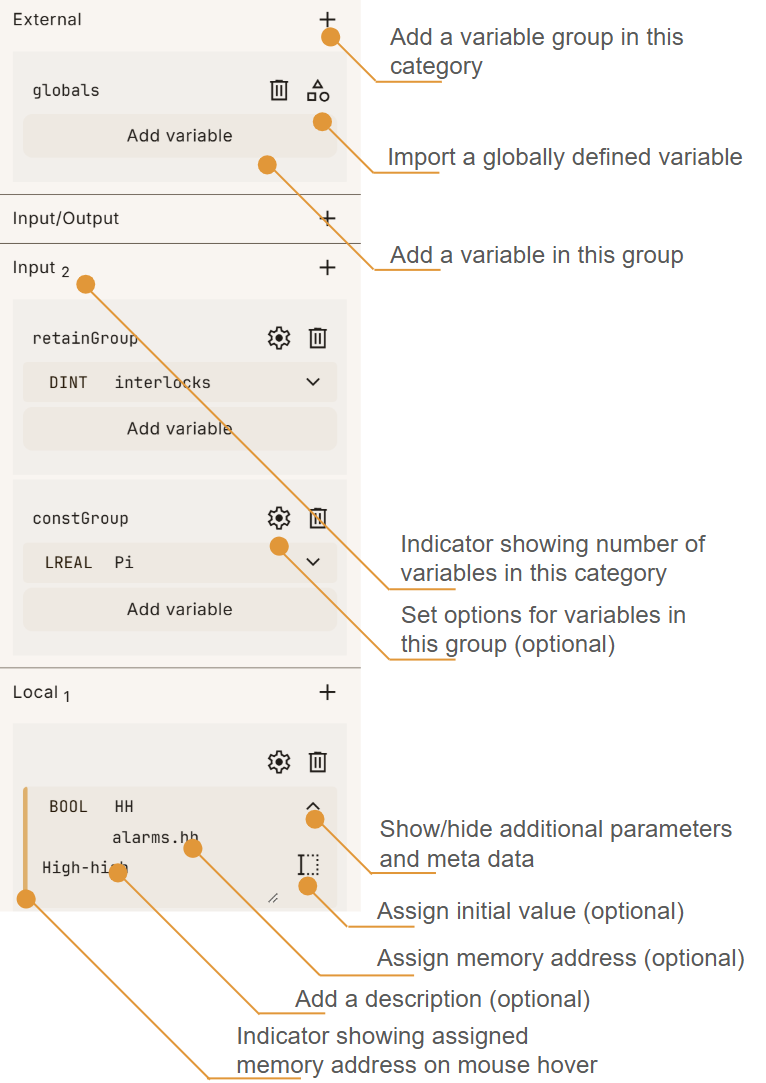
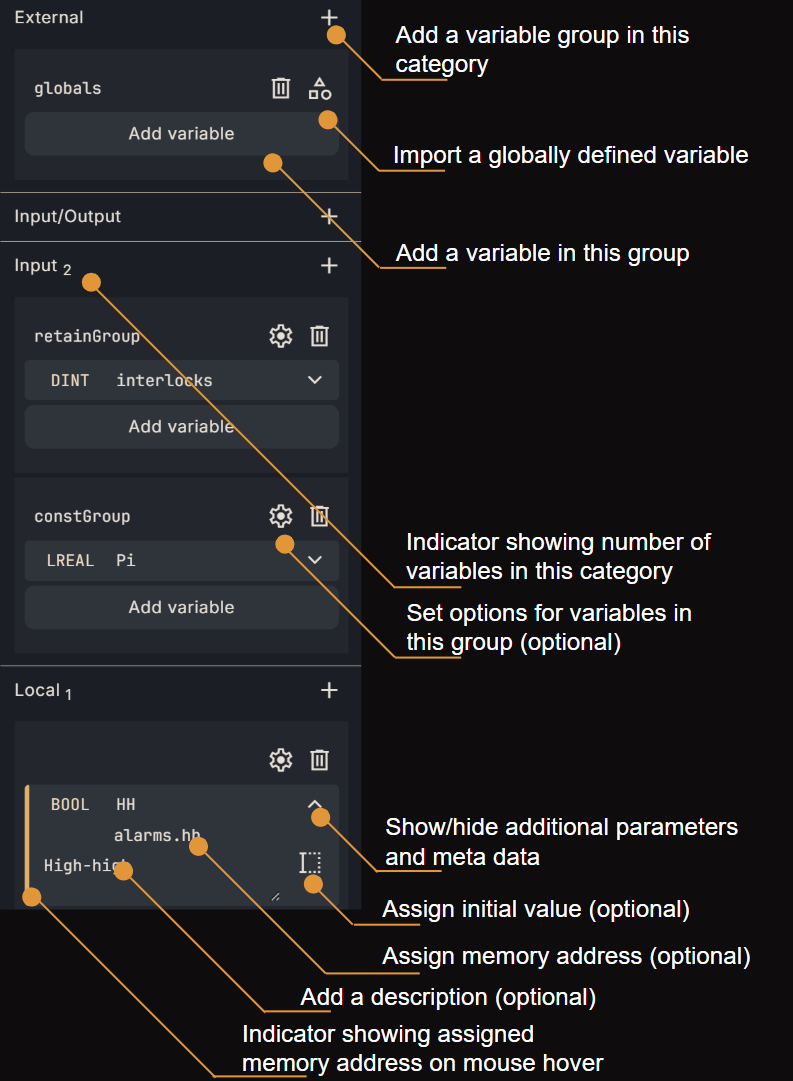
The Tag Editor to the right-hand side of the code editor shows an overview of tags in context of the currently loaded POU. This is where you add, define or remove tags and edit their properties and metadata. Tag Editor Light Variables can be assigned additional attributes (like persistent, constant, retain). These attributes are assigned to a variable group and apply to all variables within that group. Depending on the context of the currently loaded POU, available categories of variables will differ. Globally defined variables in the resource configuration can be included into a POU as a variable with the same name in the External category. Mandatory input for any variable are a data type and a name. Note that editing the name of an already referenced variable here will dynamically change the variable’s name in the code, too. Variable names must be unique within a POU and the editor will prevent you from creating multiple variables with the same name. Variables in certain categories allow for additional, optional input like memory address (linking them to I/O) and initial values. Assigning memory addresses requires the configuration of at least one communication protocol driver. You are also encouraged to add a descriptive text for a variable in the “documentation” field to make it easier for collaborators to understand your code. You can delete a variable (or an entire variable group) by right-clicking on it and selecting “Delete” from the context menu.
Diagnostics Pane

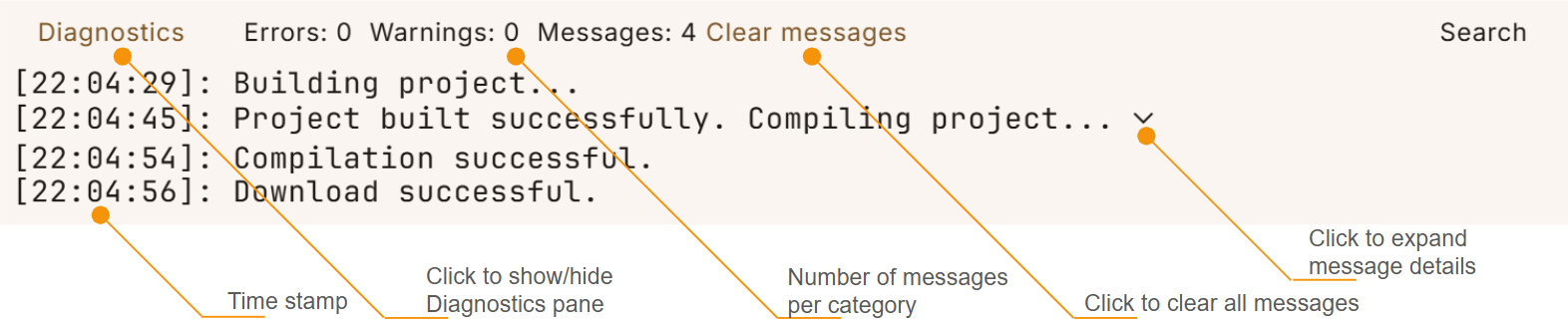
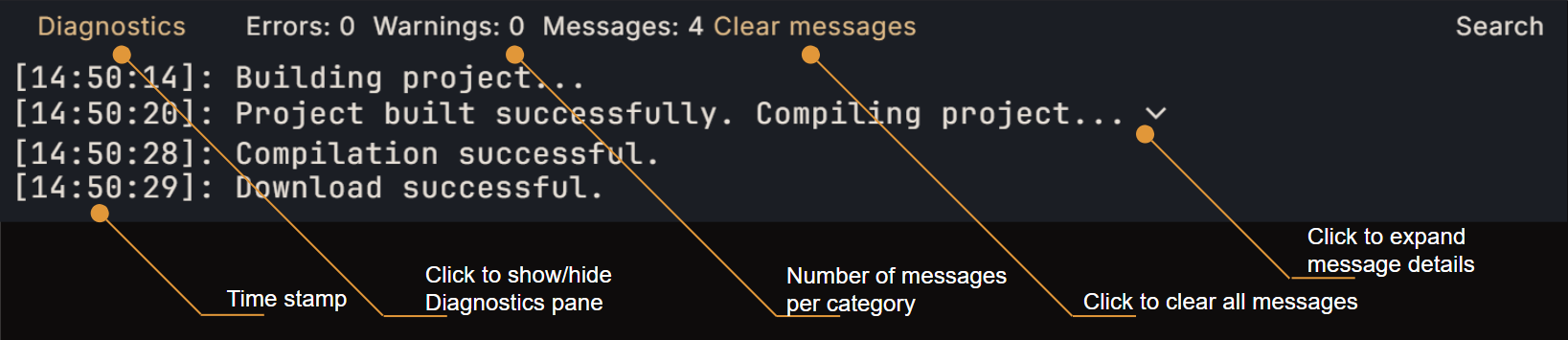
The Diagnostics pane at the bottom of your screen displays relevant messages regarding the compilation and deployment process of your project. By default, the Diagnostics pane is collapsed and can be opened by clicking on it. In case of compilation errors, it will expand automatically. Diagnostics Pane Light
Search Pane

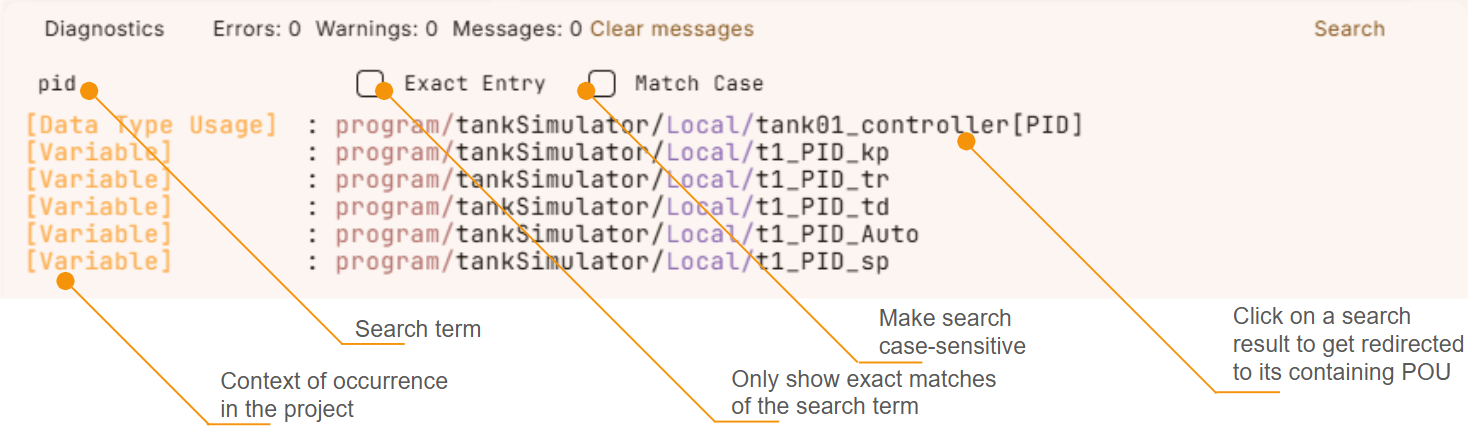
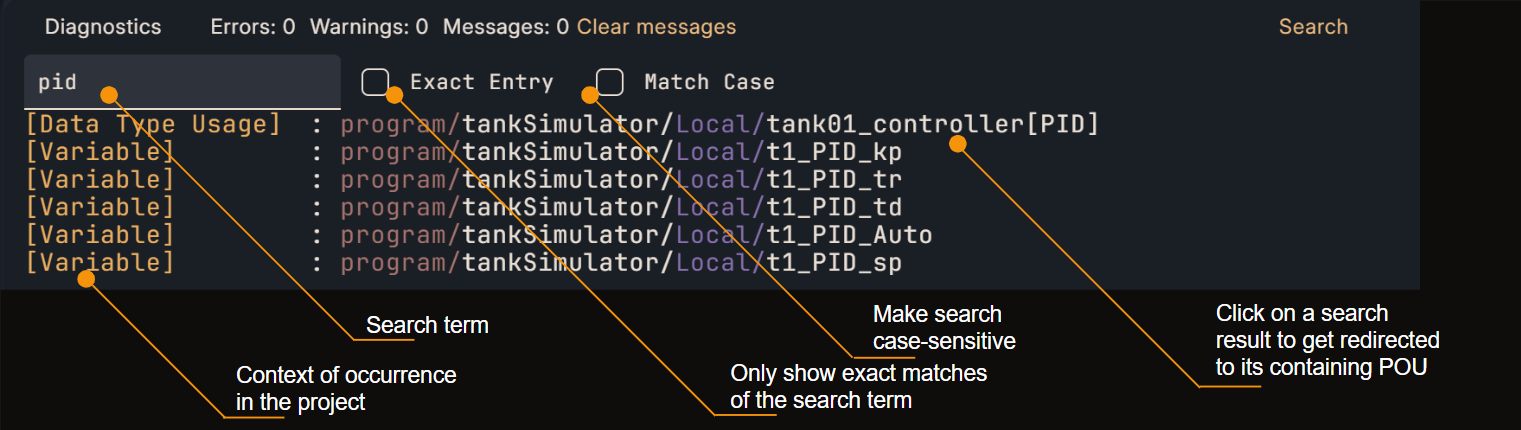
The Search pane can be opened by clicking on “Search” at the bottom of your screen or by using the keyboard shortcut Ctrl + Shift + F. Here you can search for appearances of a given text across your entire project. Clicking on a search result will take you to the according place inside your project for quick access. Search Pane Light Using the keyboard shortcut ALT + S opens and closes the panel of the user interface containing the search and diagnostics features.