So far, your project only lives as code in the cloud. Let’s change that and execute it on your local edge device.Documentation Index
Fetch the complete documentation index at: https://docs.otee.io/llms.txt
Use this file to discover all available pages before exploring further.
Connect your vPLC
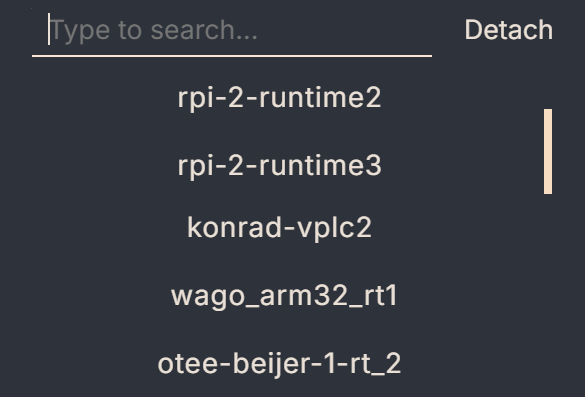
Make sure that your project is attached to the correct vPLC before you deploy your logic into production. Click on “Click here to select a vPLC” just below your project name to open the runtime selection dropdown and select the vPLC you’ve just onboarded. If you cannot see your runtime in the list of options, please repeat the “Onboard a Device” step in this quick start guide.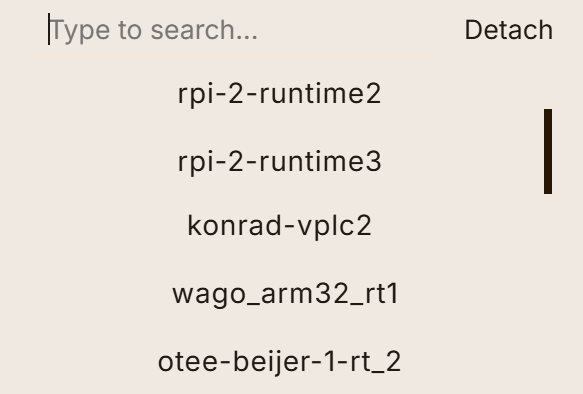
Download your project to your vPLC
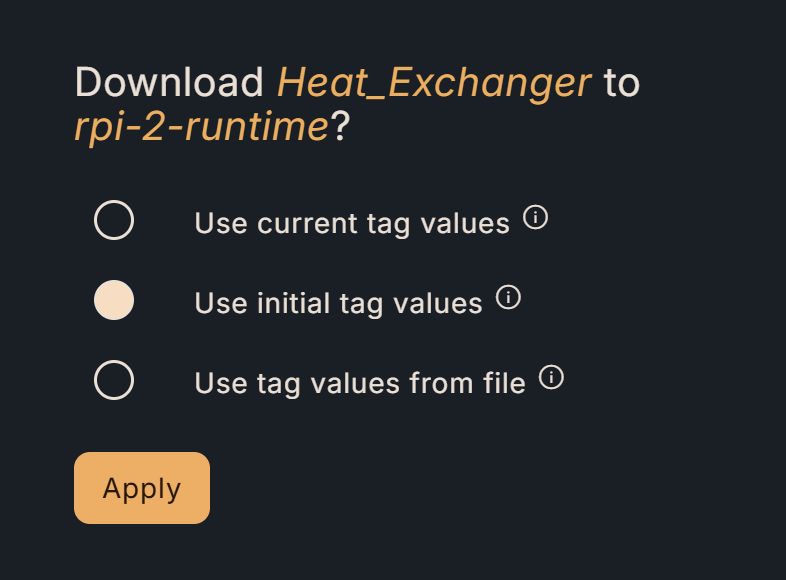
Once you have attached your project to a vPLC, the “Download project to device” button at the top of your project browser becomes enabled.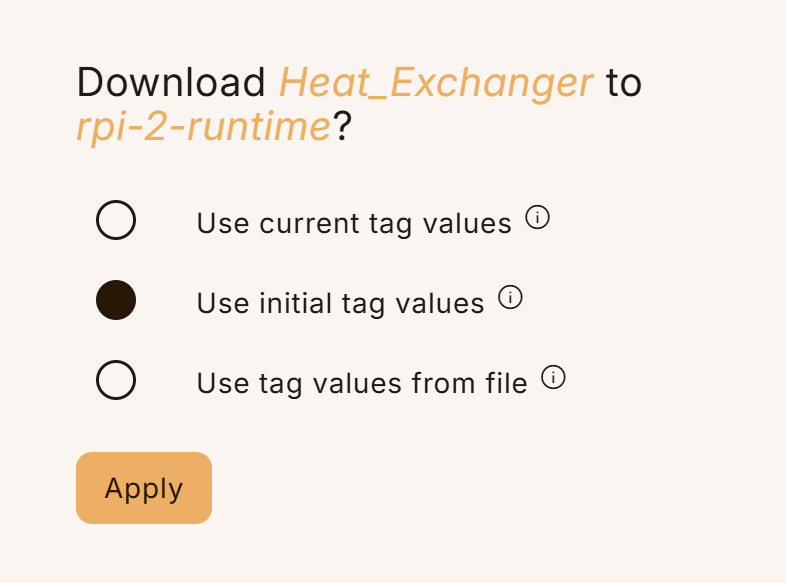
Manage Releases and Rollbacks
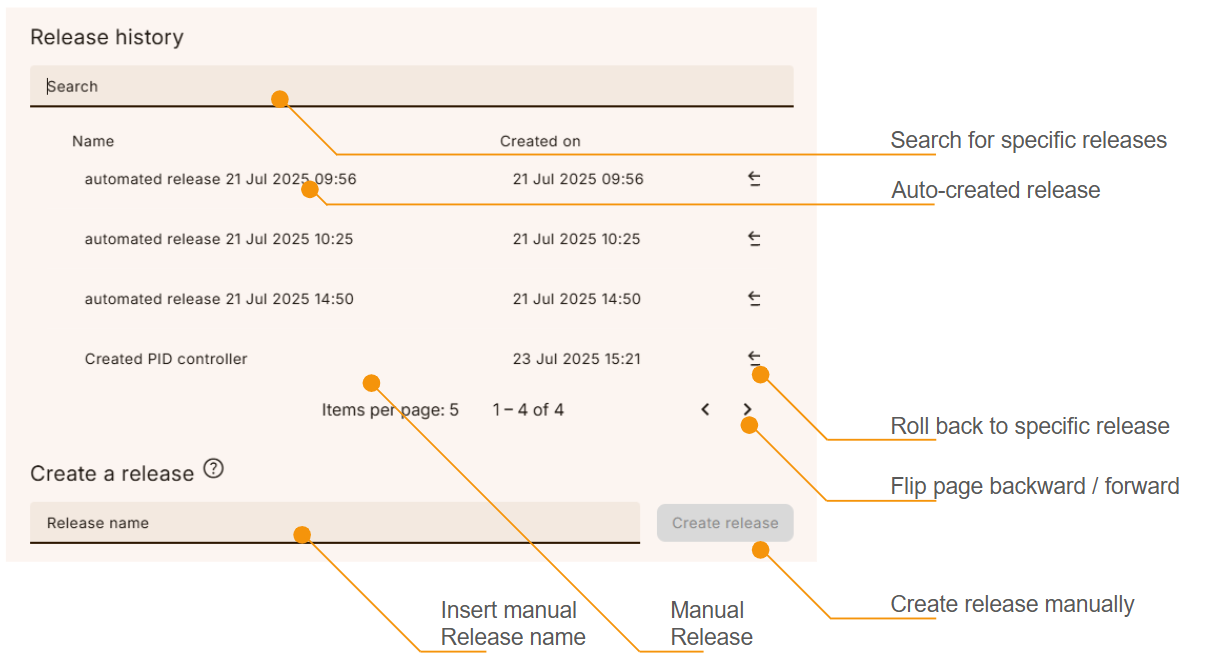
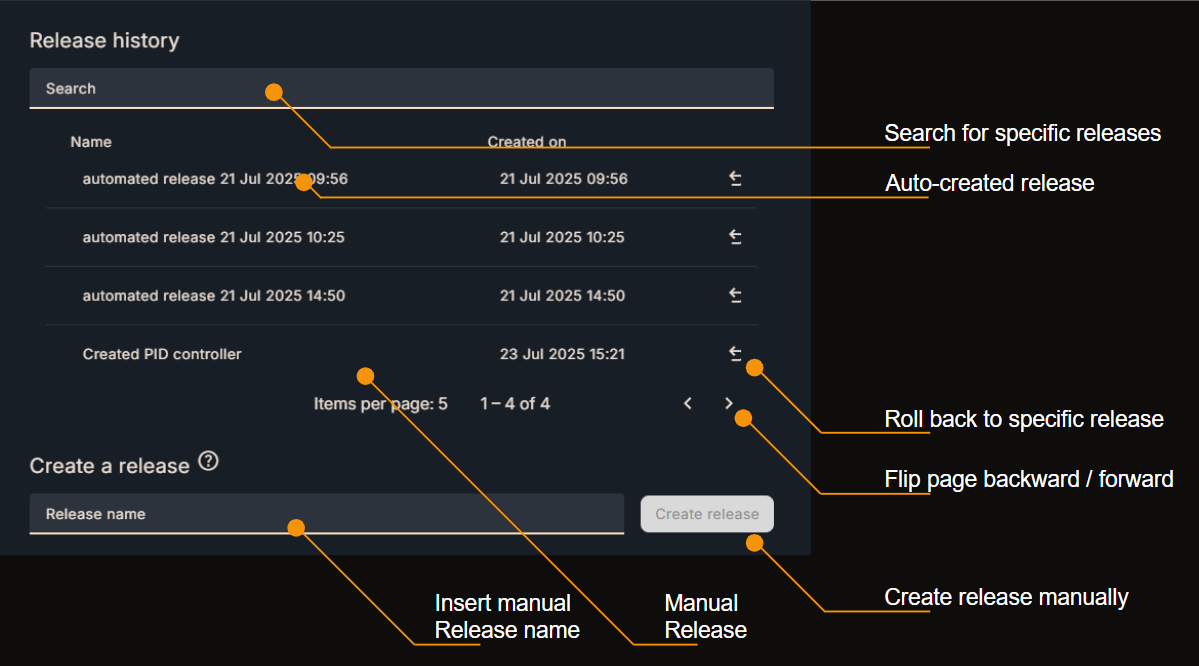
Accidents happen. If you want to roll back your project to a previous version, you can do so via the release history button on the top of your project browser. A release is auto-created every time you compile your code, either through the compile button, or by downloading your project to a device as described above. In the release history modal (see screenshot), you also have the option to manually create a release - this will result in compilation of your code as well.