

Documentation Index
Fetch the complete documentation index at: https://docs.otee.io/llms.txt
Use this file to discover all available pages before exploring further.
Onboarding / Installing a Device
Deploying an OTee vPLC to your setup requires a hardware device on your network from which it can be run. This could be an existing, physical and open PLC, or any off-the-shelf hardware that fulfils the system requirements (see below).System requirements for devices hosting OTee vPLCs:Optional:
- Linux kernel
- Internet connection and open 7422 port (outbound)
- Sufficient CPU and memory to support the intended control logic and cycle times (for small projects, pretty much any machine will do! - Note that if you’re using the Free Tier, your device needs to have at least 2GB of disk space and 1GB of RAM available)
- CURL and tar installed on the OS
- Docker and ‘docker compose’ (v2 or higher - not ‘docker-compose’) installed on the OS (see next info box below)
- Docker init / tini is installed
- Non-BusyBox version of cmdline tools is installed
- Current user needs to be part of the Docker user group (or use sudo)
- Ethernet port (for connecting to remote I/O)
- The following chip architectures of target devices are currently supported:
- ARM32, ARM64, x86_64
Troubleshooting
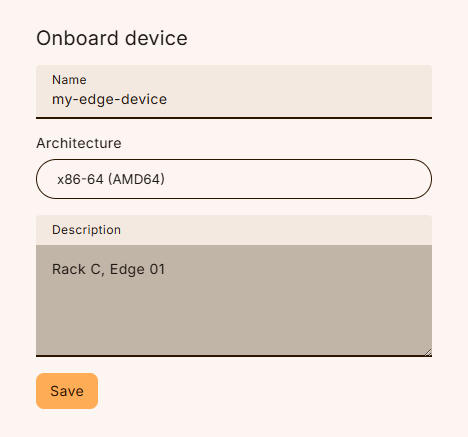
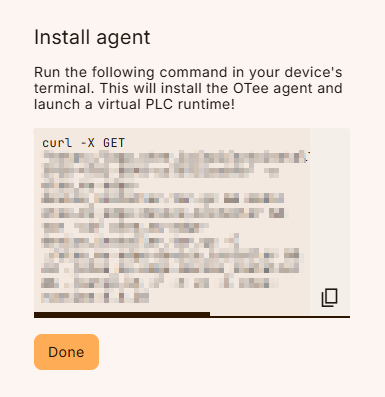
Once the installation on your host device is complete, verify that the agent is running by executing the following command (replace <your-device-name> with the name you have chosen during the onboarding process):docker logs -f agent-agent_<your-device-name>
This command will display the logs of the running agent, informing whether it has been successfully installed. Next, you may produce the logs for the publish-subscribe component on your device, by running the following command (replace <your-device-name> with the name you have chosen during the onboarding process):
docker logs -f nats-nats_<your-device-name>
If you’re detecting any errors in these logs, send them over to your friends at OTee or reach out to the community via OTee’s Discord server.